
Help with Dimey
A quick guide to finding a good bite for a little less across Greater Vancouver.
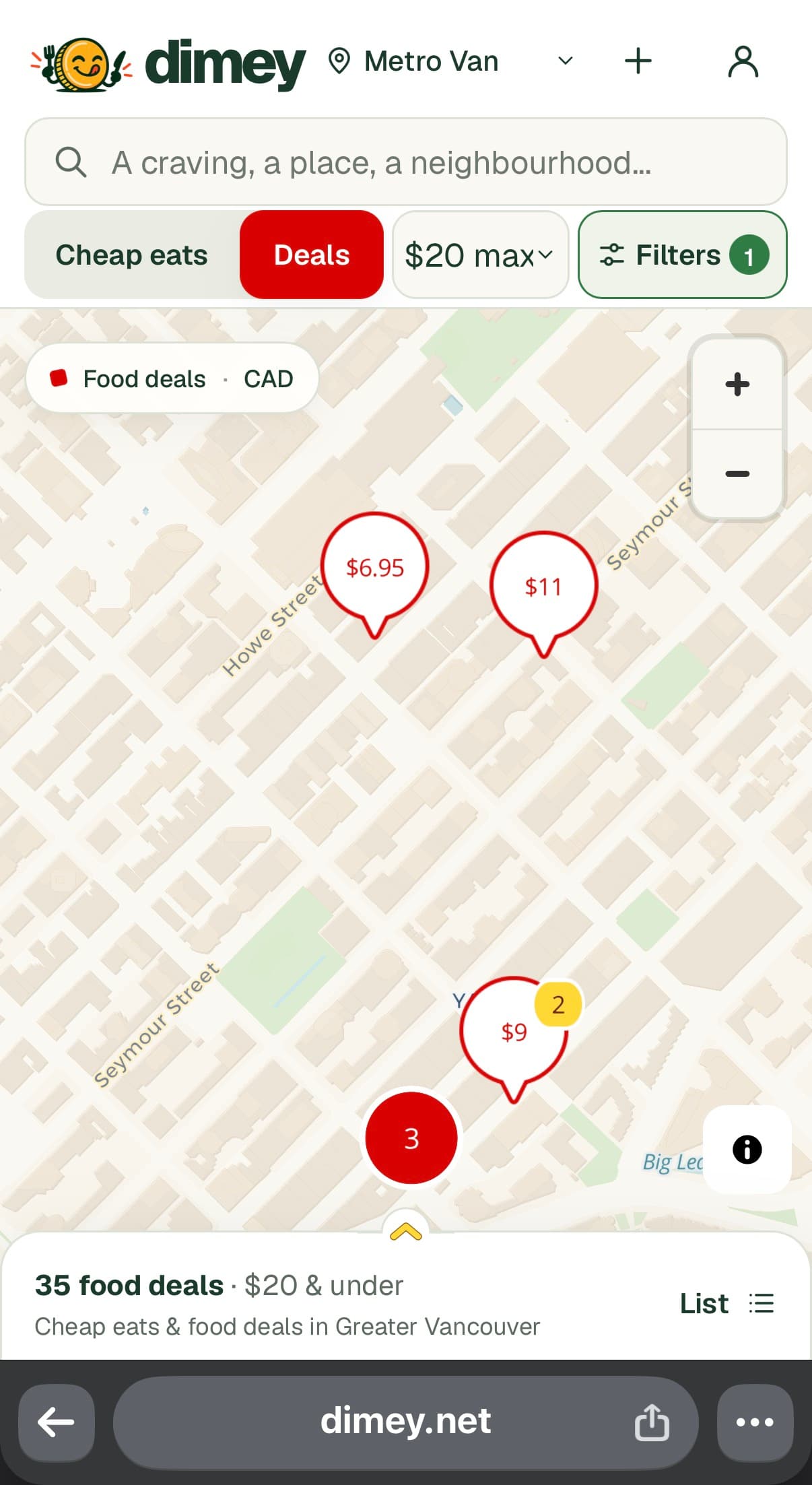
Open Dimey's mapExplore the map
Choose Cheap eats for everyday meal finds or Deals for restaurant offers. Search matches Dimey's restaurant, meal, deal, neighbourhood and tag records.
- Set a maximum price in CAD and use Filters for cuisine, neighbourhood, tags or a deal's day and time.
- Use Search area to move the map to a neighbourhood, city, postcode or address. Your food search, budget and other filters stay in place.
- Food deal schedules use Vancouver local time. An offer listing is not a guarantee that a restaurant is open, so confirm details before ordering.
If the map shows a numbered marker for nearby finds, tap it to zoom in. You can also expand the results list to browse individual finds.
Can't find something?
Check that you are in the right mode, then look at your search, price limit, filters and map area. In Deals, check whether Active right now or the selected day and time matches the offer schedule. New community submissions stay in review until they are approved.
Add Dimey to your phone's Home Screen
Open Dimey's map at dimey.net/vancouver first, then install from Safari or Chrome directly. Menu names can vary by browser version. If a link opened inside another app, open Safari or Chrome yourself and visit the map there.
iPhone or iPad
- In Safari or Chrome, open Dimey's map. Tap Share. If the page menu is shown first, open it and choose Share.
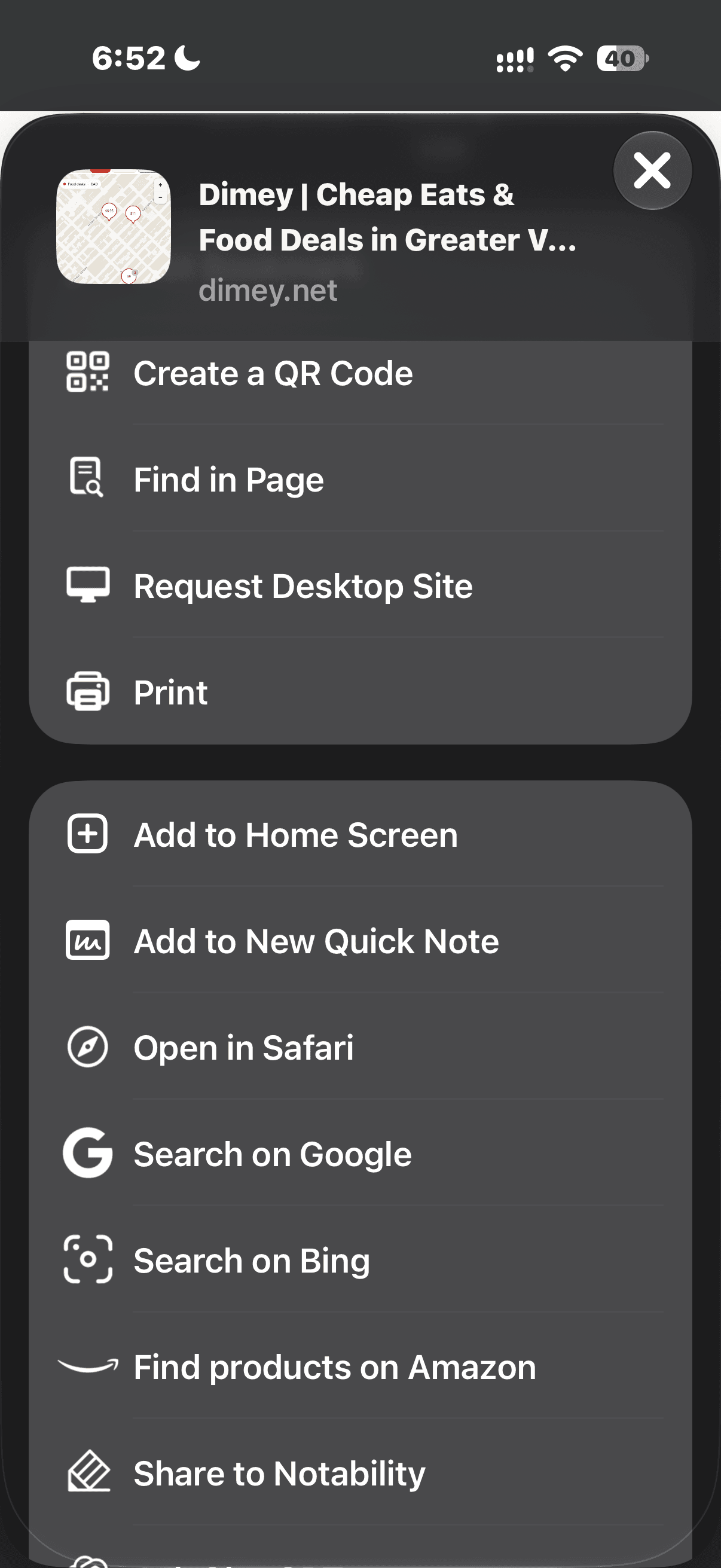
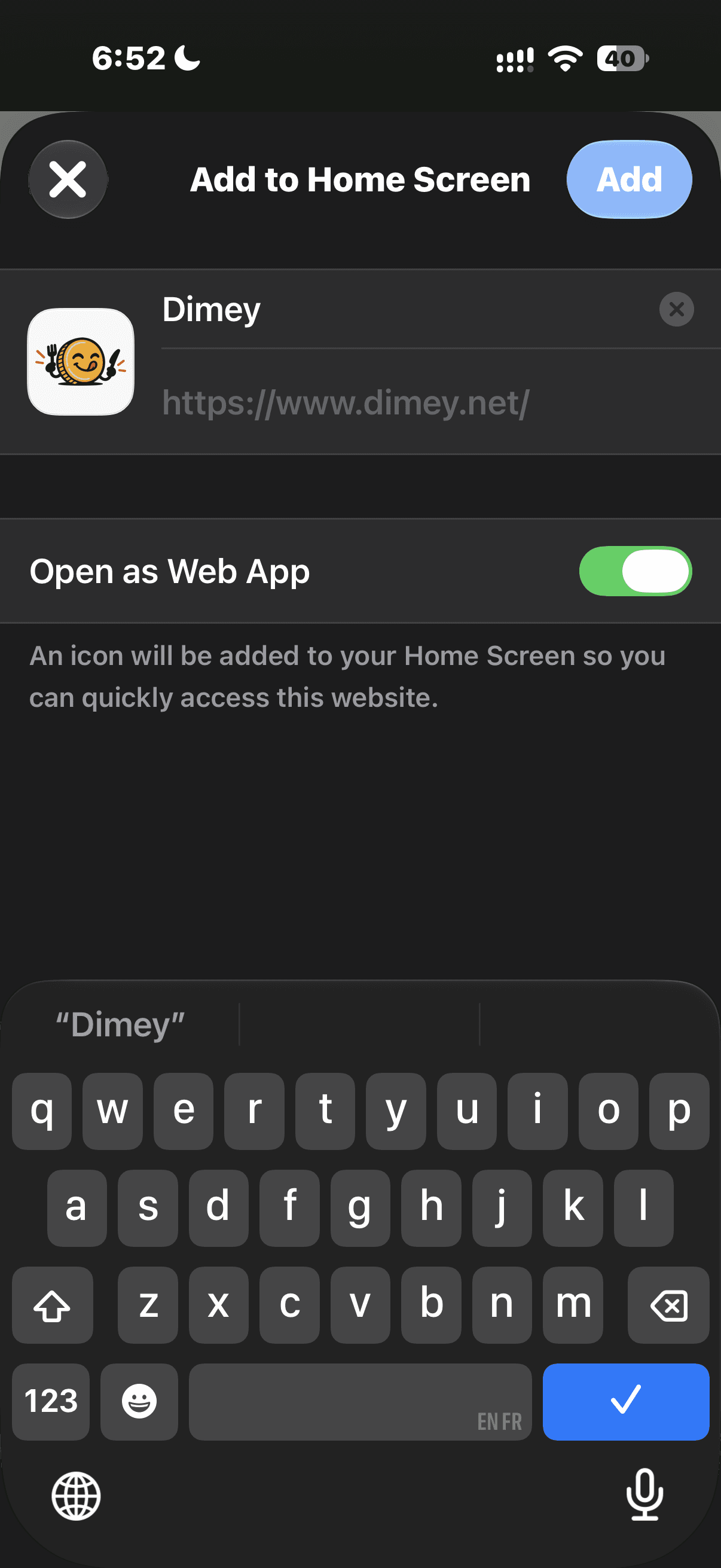
- Choose Add to Home Screen. Turn on Open as Web App if that option appears, then tap Add.
- If Add to Home Screen is missing, open Edit Actions in the Share menu and add it.
Show the iPhone screenshot guide
Follow the yellow arrows. These screenshots show Chrome on iPhone; Safari has the same Share and Add to Home Screen actions, though the menus can look different.
Tap Share Look for the square with an arrow beside the address bar.
Add to Home Screen Scroll down the Share menu and tap Add to Home Screen.
Open as a web app Keep Open as Web App on, then tap Add at the top right.
See Apple's instructions for opening a website as a web app.
Android
- In Chrome, open Dimey's map, then open the three-dot menu.
- Choose Install and create shortcut, then Install. Some versions show Add to Home screen first; choose Install if offered.
See Google's Chrome instructions for installing a site.
The Home Screen icon is a shortcut to Dimey. The map and current listings need an internet connection; adding the shortcut does not make Dimey work offline.
Common questions
What's the difference between Cheap eats and Deals?
Cheap eats shows everyday meal listings. Deals shows restaurant offers that may repeat on selected days or apply at certain times. Use the day and time filters to check when a listed offer is scheduled.
Does search look across the whole internet?
No. It matches Dimey's available restaurant, meal, deal, neighbourhood and tag records. Search area moves the map; it does not search for restaurants outside Dimey.
Why are some prices or offers different at the restaurant?
Listings can change. Prices are shown in Canadian dollars, and an offer's schedule or conditions may change too. Confirm the price and details with the restaurant before ordering.
How do I report a deal that may have changed?
Open the deal and choose Report this deal as stale. Google sign-in is required for reports. After signing in, Dimey returns you to the deal so you can review it and choose the report button again to confirm. A report is not sent automatically, and the map shows only the total report count.
Do I need an account to browse?
You can explore the map and discover meals without an account.
Does adding Dimey to my Home Screen make it available offline?
No. It adds a shortcut to the website. You need an internet connection to load the map and current food listings.